
Vertical Layouts
You can change or customize the left side navigation very easily. Following guide would help you to do that.
How to add new menu items/change menu items?
In order to add, change or remove menu items from the left side navigation, simply edit in file
src/partials/left-sidebar.php. The change would reflect in all the html files automatically.
We are using gulp-file-include which would actually take
care of including the left-sidebar.php file content in all the html pages.
How to change width?
In order to change the width of left side navigation bar, open a file
src/scss/_theme-mode.scss and change the value of variable
--#{$prefix}leftbar-width:. The default value is set to 240px.
How to use pre-built layouts?
Each of the layout options is provided below with steps you would need to perform:
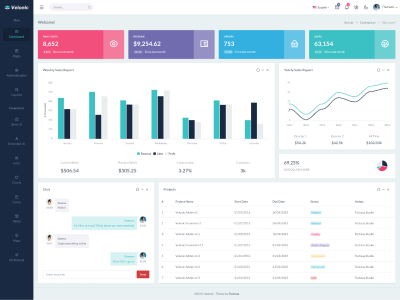
Small Sidebar
Keep your body element with attributedata-sidenav-size="compact" E.g. <html lang="en" data-sidenav-size="compact"> to have small sidebar.
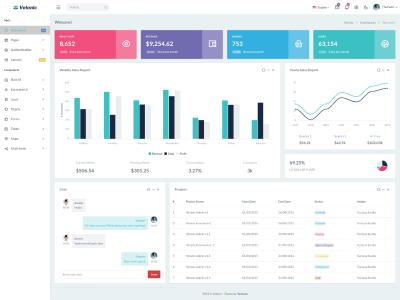
Light Sidebar & Topbar Light
Keep your body element with attributedata-menu-color="light" E.g. <html lang="en" data-menu-color="light"> to have dark sidebar. Add attribute data-topbar-color="light" to have light topnav.
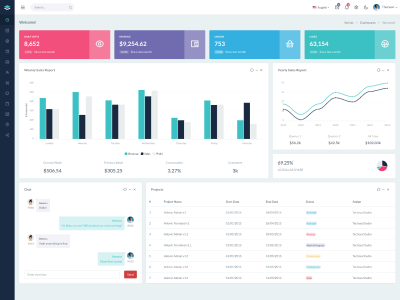
Collapsed Sidebar
Keep your body element with classenlarged and data attribute data-sidenav-size="condensed" E.g. <html lang="en" data-sidenav-size="condensed"> to have collapsed sidebar.
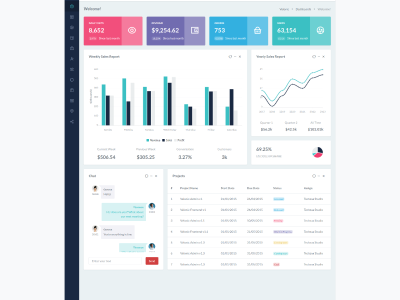
Boxed Layout
Keep your body element with classenlarged boxed-layout and data attribute data-layout-mode="boxed" E.g. <html lang="en" data-layout-mode="boxed"> to have boxed layout.
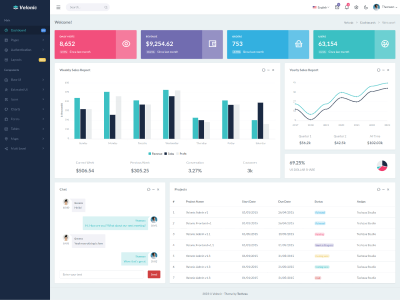
Unsticky Layout
Keep your body element with classunsticky-layout E.g. <html lang="en" data-layout-position="scrollable"> to have unsticky layout.